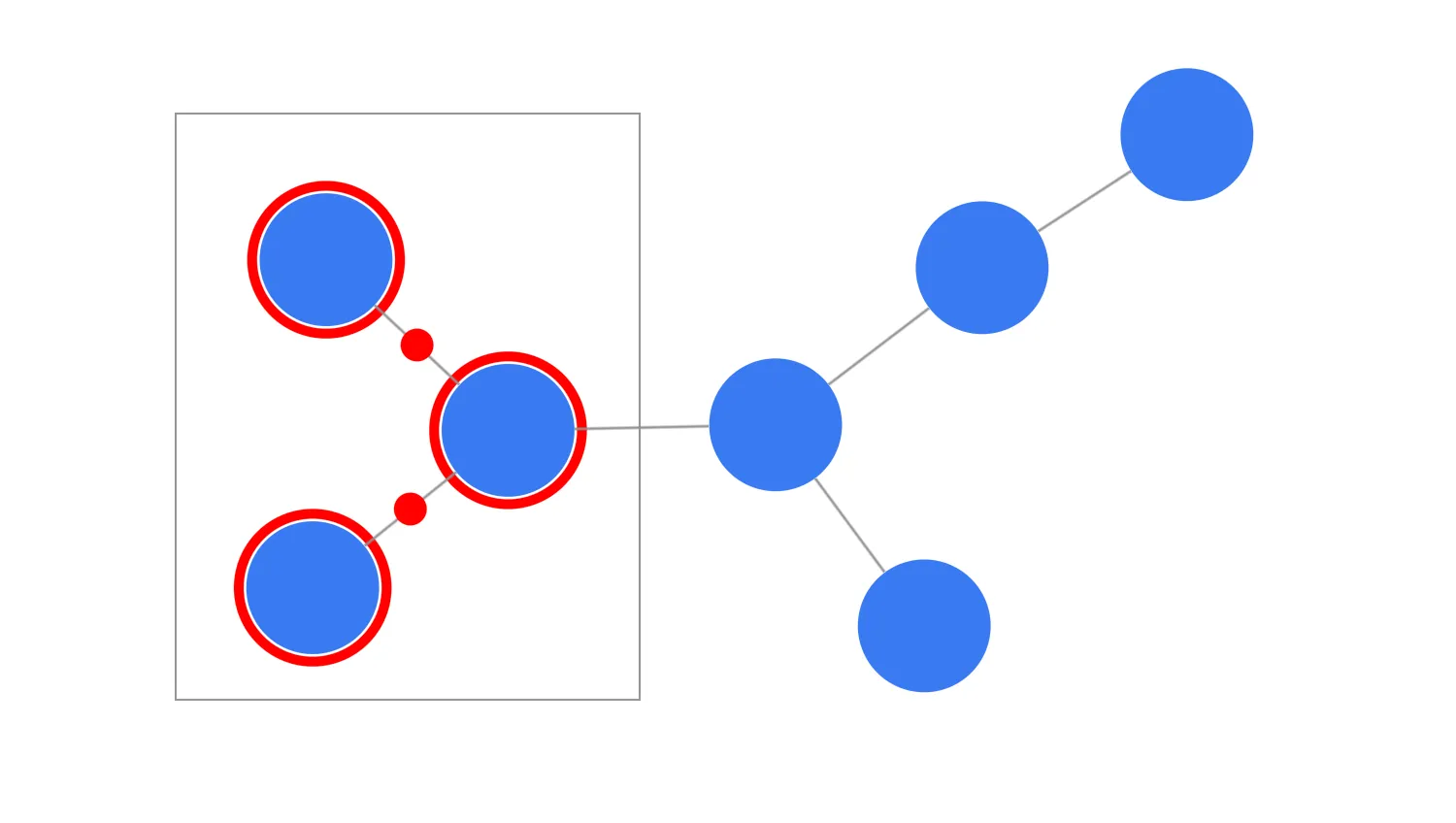
The drag-start event and its properties let you customise the dragging behaviour.
By passing arguments to the setDragOptions function you can control various aspects of dragging including default draggers.
Use the active modifierKeys and mouse buttons to create custom draggers over the chart or its specific components.
Key functions used:
import KeyLines from "keylines";
import { data } from "./data";

let chart;

function dragStartHandler({ button, modifierKeys, setDragOptions }) {
  // Retrieve the selected option
  const selectedDragOption = document.querySelector(
    'input[name="customDrag"]:checked',
  ).value;

  if (
    (selectedDragOption === "dragRightPan" && button === 2) ||
    (selectedDragOption === "dragCtrlPan" && modifierKeys.ctrl) ||
    selectedDragOption === "alwaysPan"
  ) {
    // Set the dragging options by returning a function here
    // with the desired dragging behaviour
    setDragOptions({ type: "pan" });
  }
}

async function startKeyLines() {
  const options = {
    logo: {
      u: "/public/images/Logo.png",
    },
    selectionColour: "#ff0000",
  };

  chart = await KeyLines.create({ container: "klchart", options });
  chart.load(data);
  chart.layout("organic");
  // Attach a handler to the drag-start event
  chart.on("drag-start", dragStartHandler);
}

window.addEventListener("DOMContentLoaded", startKeyLines);export const data = {
type: "LinkChart",
items: [
{
type: "node",
id: "Node 1",
c: "#397af2",
},
{
type: "node",
id: "Node 2",
c: "#397af2",
},
{
type: "node",
id: "Node 3",
c: "#397af2",
},
{
type: "node",
id: "Node 4",
c: "#397af2",
},
{
type: "node",
id: "Node 5",
c: "#397af2",
},
{
type: "node",
id: "Node 6",
c: "#397af2",
},
{
type: "node",
id: "Node 7",
c: "#397af2",
},
{
type: "link",
id: "Node 1 - Node 2",
id1: "Node 1",
id2: "Node 2",
},
{
type: "link",
id: "Node 1 - Node 3",
id1: "Node 1",
id2: "Node 3",
},
{
type: "link",
id: "Node 1 - Node 4",
id1: "Node 1",
id2: "Node 4",
},
{
type: "link",
id: "Node 2 - Node 5",
id1: "Node 2",
id2: "Node 5",
},
{
type: "link",
id: "Node 2 - Node 6",
id1: "Node 2",
id2: "Node 6",
},
{
type: "link",
id: "Node 5 - Node 7",
id1: "Node 5",
id2: "Node 7",
},
],
};<!doctype html>
<html lang="en">
<head>
<meta charset="utf-8">
<title>Custom Dragging</title>
<link rel="stylesheet" type="text/css" href="@ci/theme/kl/css/keylines.css">
<link
rel="stylesheet"
type="text/css"
href="@ci/theme/kl/css/minimalsdk.css"
>
<link
rel="stylesheet"
type="text/css"
href="@ci/theme/kl/css/sdk-layout.css"
>
<link rel="stylesheet" type="text/css" href="@ci/theme/kl/css/demo.css">
<link
rel="stylesheet"
type="text/css"
href="@ci/theme/kl/css/examples-chrome.css"
>
</head>
<body>
<div class="chart-wrapper demo-cols">
<div id="lhs" class="flex1">
<div
id="lhsVisual"
class="toggle-content is-visible"
style="width: 100%; height: 100%"
>
<div id="klchart" class="klchart"></div>
</div>
</div>
<div class="rhs citext" id="demorhscontent">
<div class="tab-content-panel">
<div id="controlsTab" class="toggle-content is-visible tabcontent">
<p>Select the dragging and panning behaviour.</p>
<form id="rhsForm" autocomplete="off" onsubmit="return false;">
<div class="cicontent">
<fieldset>
<label class="radio"
><input
type="radio"
name="customDrag"
value="default"
checked="checked"
>
Default (left-click drag)</label
><label class="radio"
><input type="radio" name="customDrag" value="dragRightPan">
Left-click drag, right-click pan</label
><label class="radio"
><input type="radio" name="customDrag" value="dragCtrlPan">
Left-click drag, left-click + <strong>CTRL</strong> key pan</label
><label class="radio"
><input type="radio" name="customDrag" value="alwaysPan">
Left-click pan, right-click pan, no drag</label
>
</fieldset>
</div>
</form>
</div>
</div>
</div>
</div>
<script type="module" src="./code.js"></script>
</body>
</html>