Items
KronoGraph is a JavaScript library that lets you add Timeline components to your web applications. These components show the timelines of entities and the events that involve them, creating time-based data visualizations.
You can interact with items such as entities, events, annotations, lens view, markers, time series charts and more, as illustrated below.
Entities

Kronograph Example
Entities are persistent, uniquely identifiable actors or objects, shown using horizontally-drawn timelines. They can be, for example, people, phone numbers or bank accounts.
Each entity is defined by an Entity object that can have a type that defines its basic styling, and can be used to group entities together.
Entity groups
Kronograph Example
If it's appropriate for your data, it can be useful to organize your entities into different groups by setting their type.
Events
Kronograph Example
Events occur at a specific time and involve at least one entity.
Events can have a type that defines their basic styling.
Event heatmap
Kronograph Example
Heatmaps provide an overview of your data by aggregating event information for each entity. The cells in the heatmap span periods of time in the timeline. As you zoom in on shorter time periods, individual events are shown instead.
Event folds
Kronograph Example
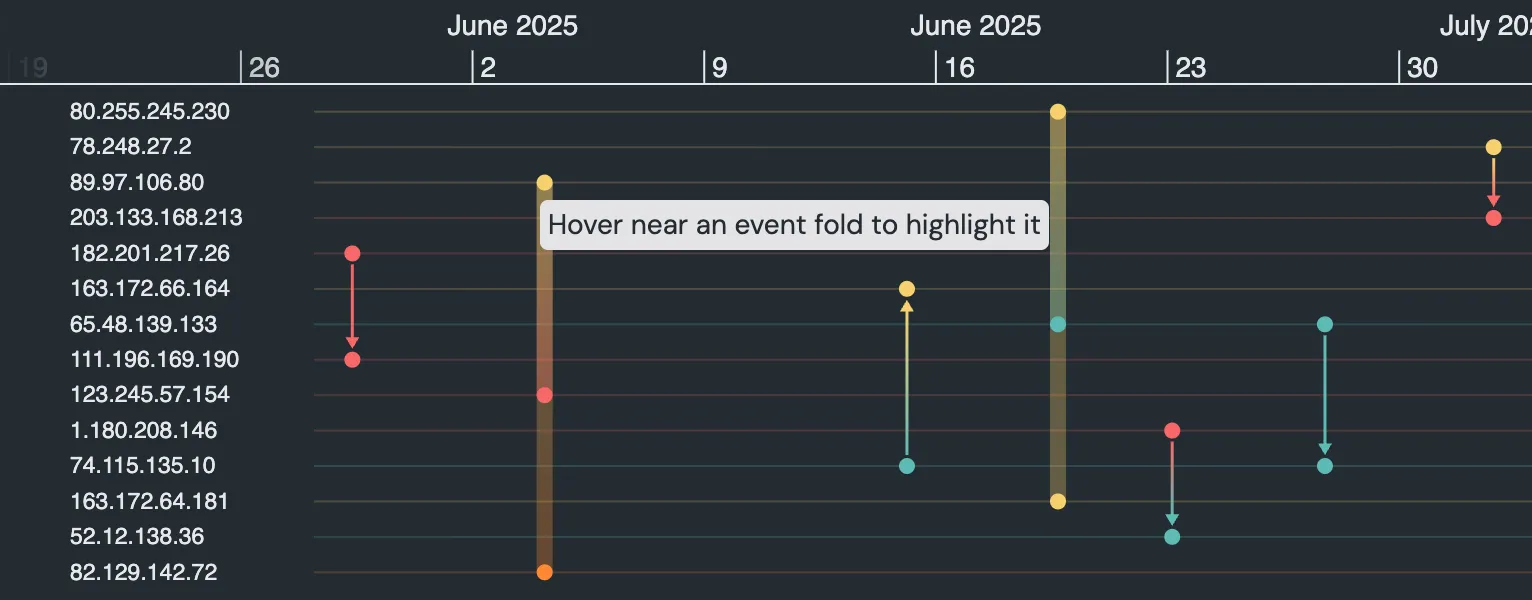
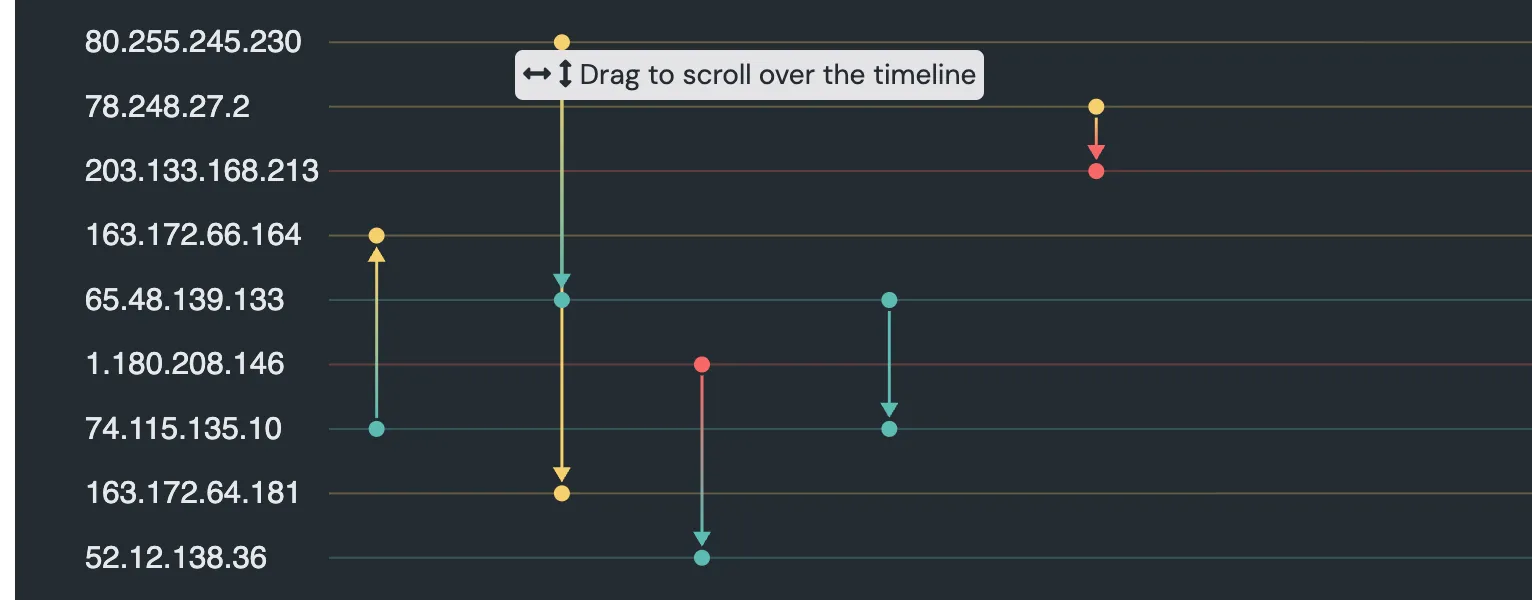
Multiple events that occur at exactly the same time (with the exact same timestamp) are 'folded' together and displayed as an event fold. Click the fold to toggle its view.
Event summaries
Kronograph Example
If multiple events are drawn too closely to one another, the timeline may combine them into event summaries to avoid overlapping. As the user zooms in, summaries are resolved to individual events.
You can also choose to expand entity rows, if there's space, to minimize the number of event summaries.
Timeline annotations
Kronograph Example
Annotations can be used to help point out interesting events and entity ranges in the timeline.
Lens view
Kronograph Example
Lens view can be toggled using the control on the left, allowing you to magnify the entities it's centered on.
The lens control  appears automatically when there's not enough vertical space to display entity names, allowing you to open lens view. Use it to explore large sets of entities, within context, by scrolling up and down on the entity labels.
See also Show Lens Highlight.
Explore this further in the Lens example. You can specify the base color used for lens-related controls using the color lens control option.
Timeline markers
Kronograph Example
A marker is positioned at a specific time, spanning the height of the timeline component, across all entities.
Time series charts
Kronograph Example
Time series charts are a way of visualizing continuous time series data along the same time scale as the associated events data.
Interactions
KronoGraph allows you to explore, and interact with, your data:
- Navigating timelines
- Selecting entities
- Pinning an entity
- Focusing an entity
- Magnifying entities
- Selecting events
- Interacting with event folds
Note KronoGraph automatically arranges entities more compactly as you zoom out. If you zoom out far enough, their labels and controls are no longer shown. The lens view control on the left allows you to magnify entities, and see their labels.
Navigating Timelines
Navigate the timeline by:
- Dragging or scrolling horizontally to pan along it.
- Scrolling vertically to zoom in and out.
- Using Shift + drag to draw a selection marquee: KronoGraph then zooms into that selected time range.
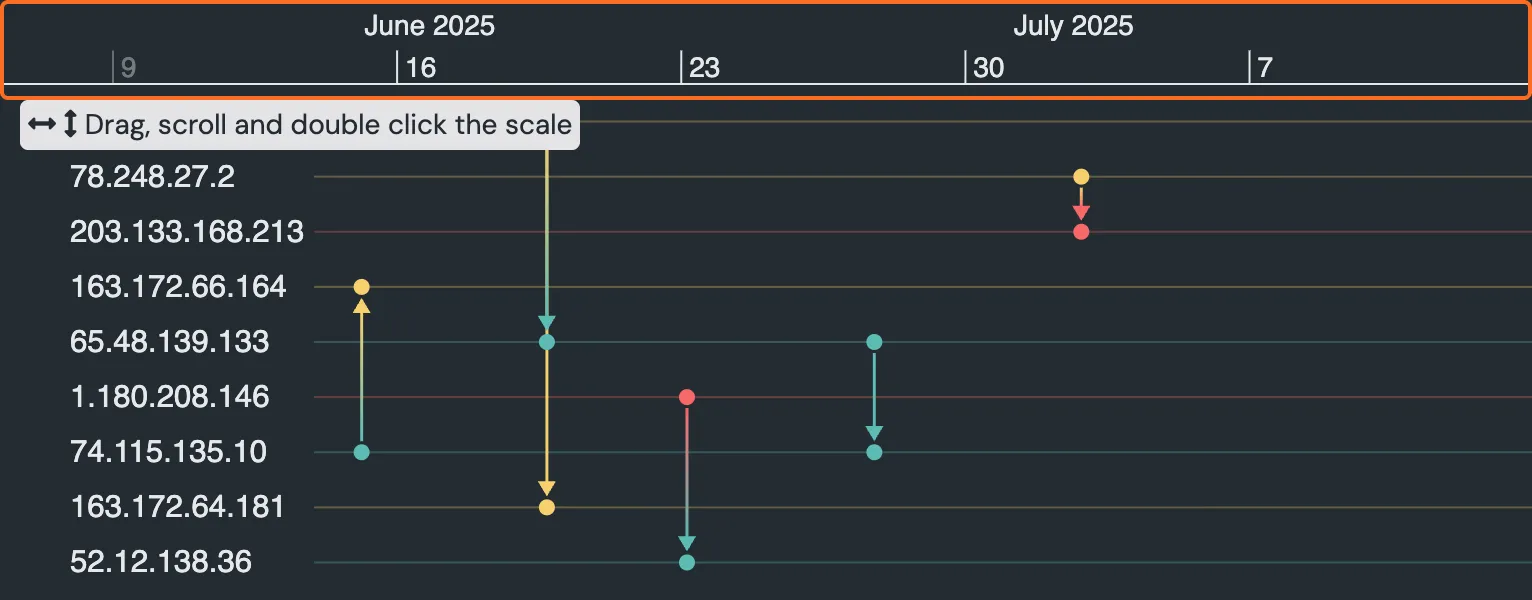
When the timeline has a time scale (shown highlighted with a box below), you can also use that for navigation:
- Scroll the scale horizontally to pan along the timeline.
- Scroll it vertically to zoom in and out.
- Drag along the scale to draw a marquee: KronoGraph then zooms into that selected time range.
- Double-click it to zoom into the time period between adjacent vertical scale tick marks.
You can use timeline options to specify the position and appearance of the time scales.
Selecting Entities beta
When entitySelectionEnabled entitySelectionEnabled is set to true you can select entities.
- Click an entity to select it.
- Use Shift + click to select multiple entities.
To deselect entities:
- Click the timeline area to deselect all entities.
- Cmd + click (Ctrl + click for Windows) to toggle selection of a particular entity.
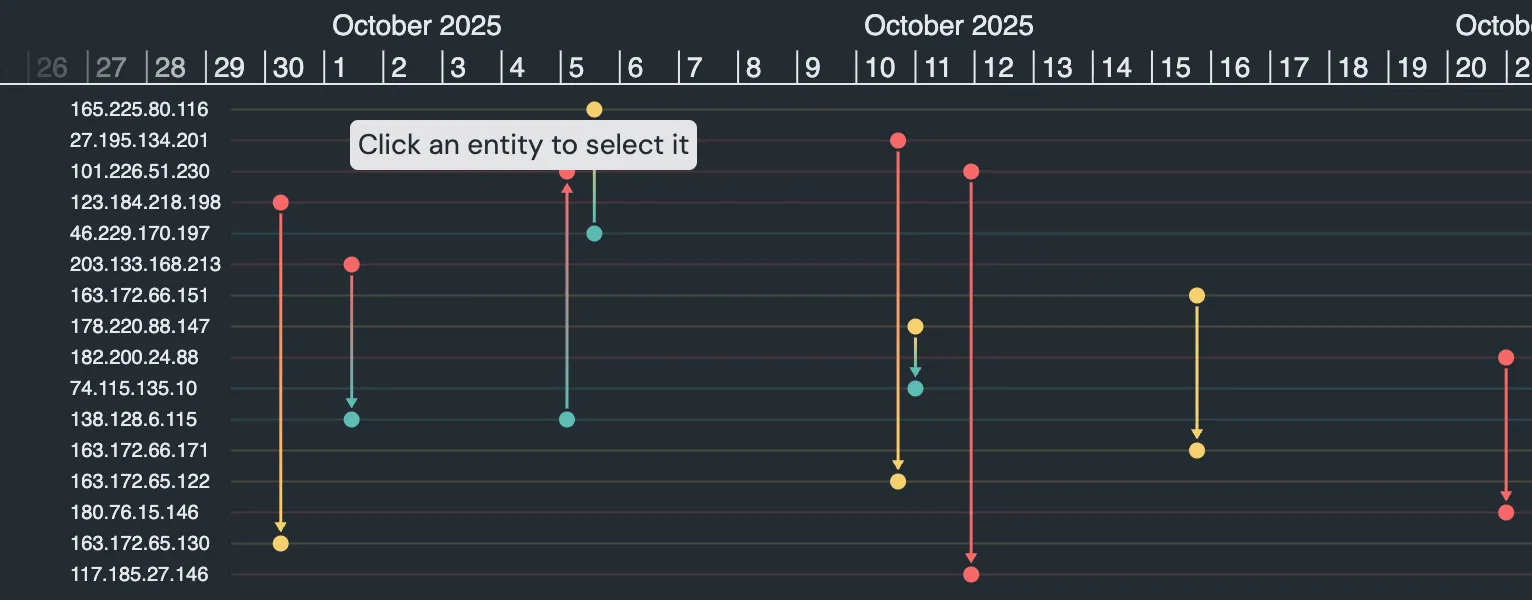
To get a list of selected entities use the entitySelection API. entitySelection API. An example of this is shown in the KronoGraph and KeyLines Basics story, KronoGraph and ReGraph Basics story, which also illustrates how entity selection compares to focusing on an entity.
It's also possible to select events.
Pinning an Entity
To keep one or more entities in view at all times, you can pin it.
To pin or unpin an entity, click its pin control 
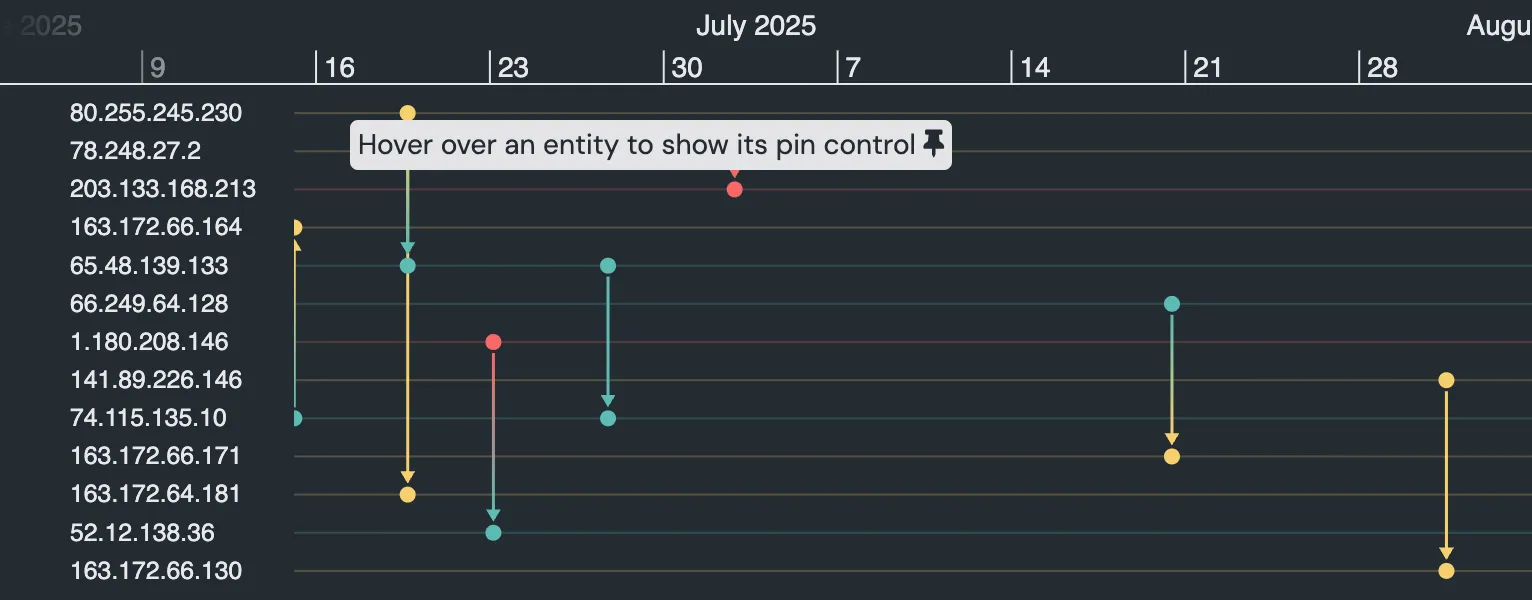
You can also use the timeline.pin function.
Focusing an Entity
To concentrate on a single entity, and the events it's involved with, you can focus it. An entity with focus is highlighted, and only events that involve it are shown.
To toggle the focus on and off for an entity:
- Click the focus control
- Double-click the entity's timeline
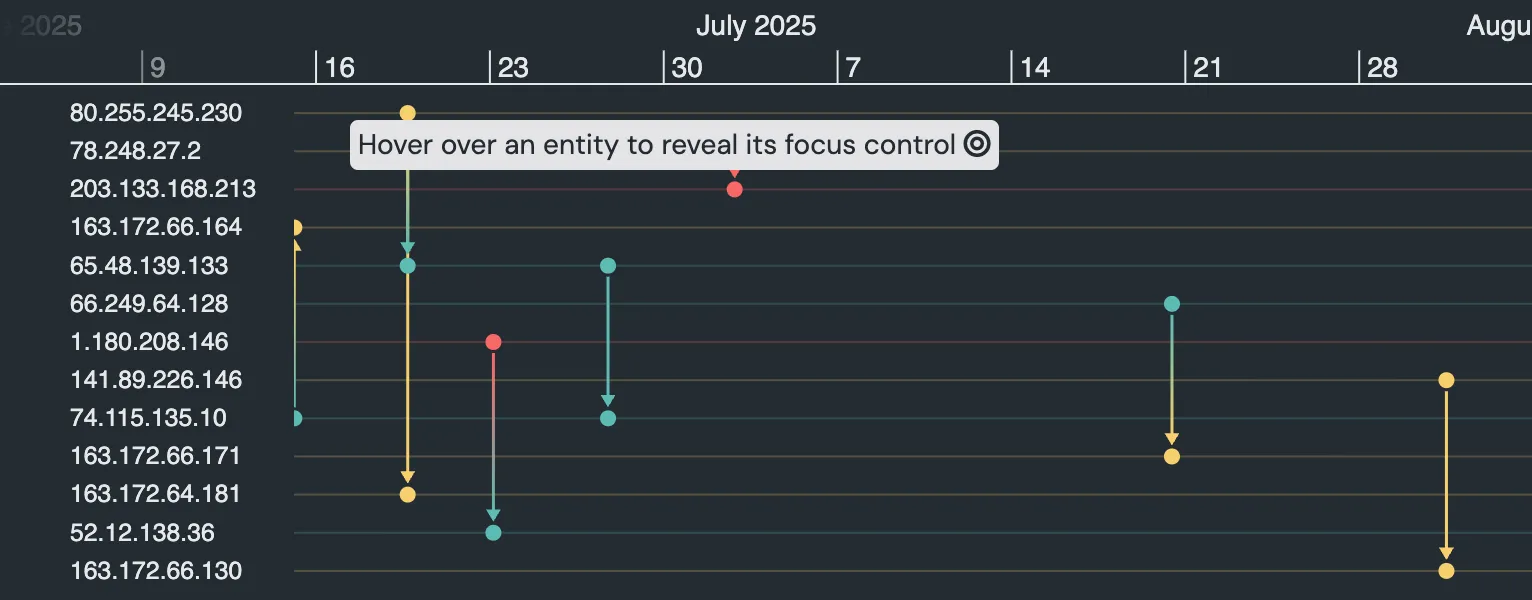
You can also use the focus API. focus prop.
Magnifying Entities
Entity labels are only displayed when there's enough vertical space. To view them when they're collapsed, you can use lens view. This magnifies the entities inside the highlighted band so you can read their names and see their controls. Scroll the label area vertically to move up and down through the entities.
To toggle lens view on and off:
- Click to open lens view.
- Click
 to close lens view.
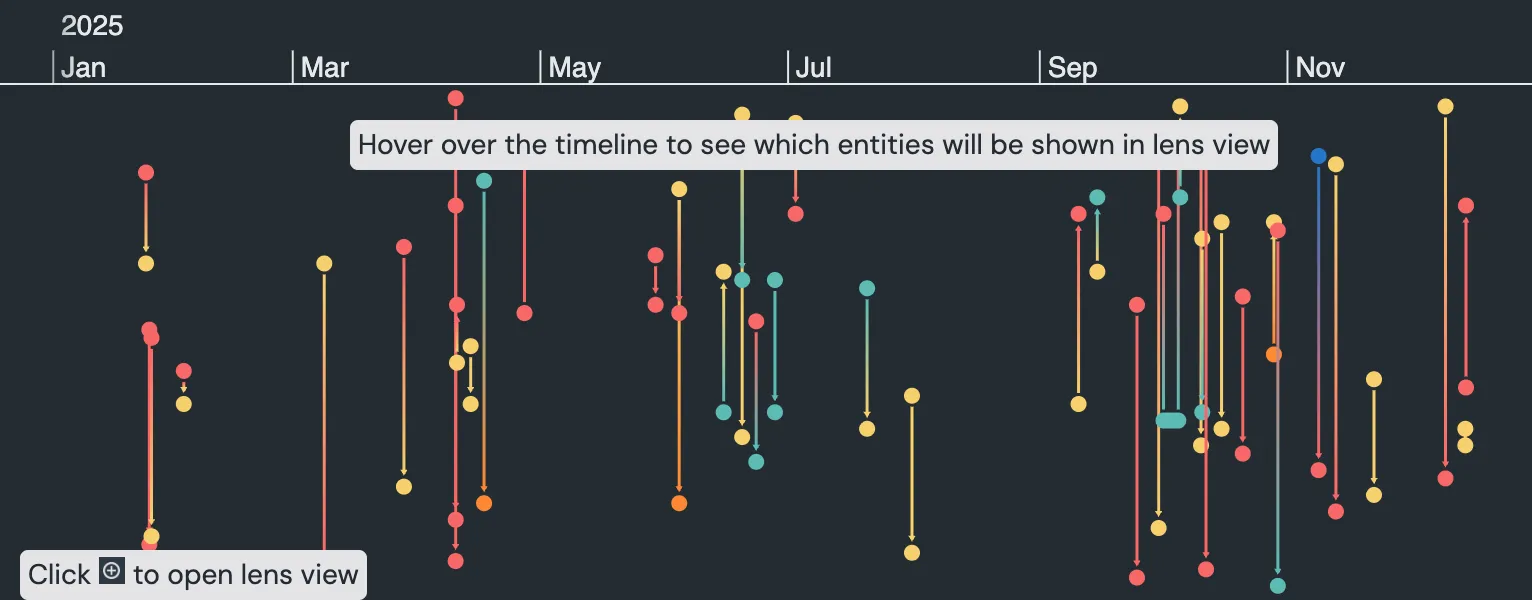
You can also use the timeline.lens function.
Selecting Events
Events are only selectable if eventSelectionMode eventSelectionMode is set to true. They are then shown with a highlight.
- Click events to select them.
- Drag to select multiple events.
- Shift + click, or Shift + drag, to add to the current selection.
To deselect events:
- Click the timeline area to deselect all events.
- Cmd + click (Ctrl + click on Windows) to toggle selection of a particular event.
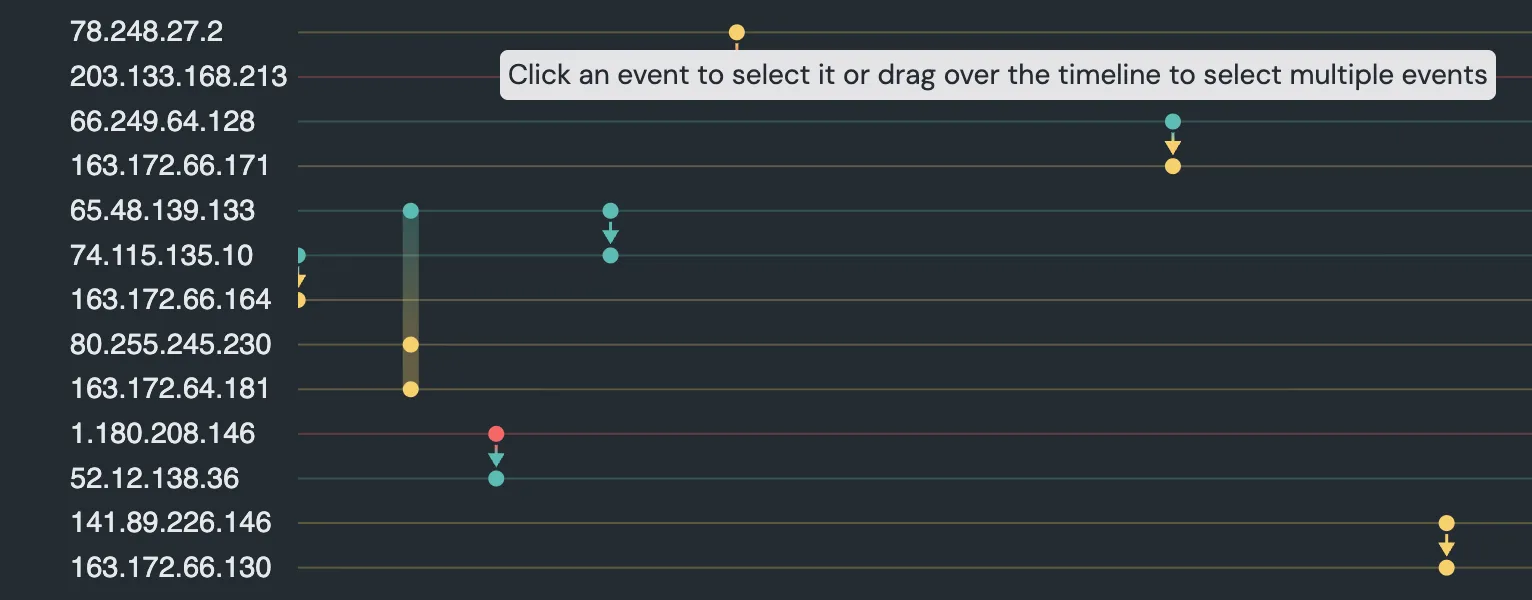
You can add annotations to selected events, as shown in the Creating Annotations example.
You can get a list of selected events using the eventSelection API. eventSelection prop.
It's also possible to select entities.
Interacting with Event Folds
Event folds are shown as broad vertical lines with diamonds and chevrons indicating where events are present.
When you hover near an event fold the background and chevrons are highlighted. To open a fold and display its individual events:
- Click the "<" or ">" on the fold.
- Click this highlighted area.
- Click the vertical line.
To close a fold:
- Click the "x" at the top of the fold.
- Click the open fold in the highlighted area, but not on an event itself.
- Click another fold: opening a fold closes any opened fold.